Promoção no Spotify
How to Use Looping Spotify Canvas Video Like a Pro

Nadav Peleg
Atualizado · 8 min de leitura
If you don't know how to use Spotify canvas video this year, you're losing a lot of fans on Spotify. No worries, this page shows you how you can do it.


You know those looping visuals you see behind songs on Spotify?
That’s what Spotify Canvas video feature looks like. And yes, you can make one too.
It’s one of the fastest ways to grab attention and make your music look more professional.
Artists like Billie Eilish, Burna Boy, and Travis Scott all use them all the time. And even fans have something to stare at the screen.
You wanna make one too? I’ll show you how to make Spotify Canvas videos like a pro.
Best Practices You Must Know
Before you make your Canvas, here’s what you need to know.
Don’t worry, it’s simple. I’ll show you examples too.
#1 - Make it tall, not wide
Your video should be in the same shape as a phone screen. If it’s not, Spotify will cut parts off.
Check out Dua Lipa’s “Levitating” Canvas:
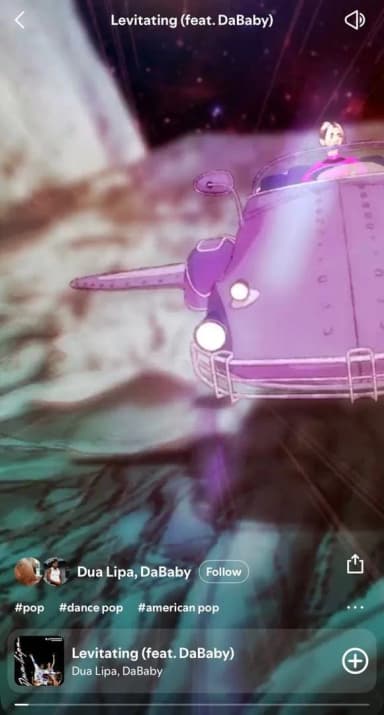
You see it? Her team did it right. It perfectly fits the screen.
#2 - Keep it looping smooth
It should play over and over without looking weird when it restarts. No fast cuts. Just one clean loop.
See ODESZA’s “The Last Goodbye”
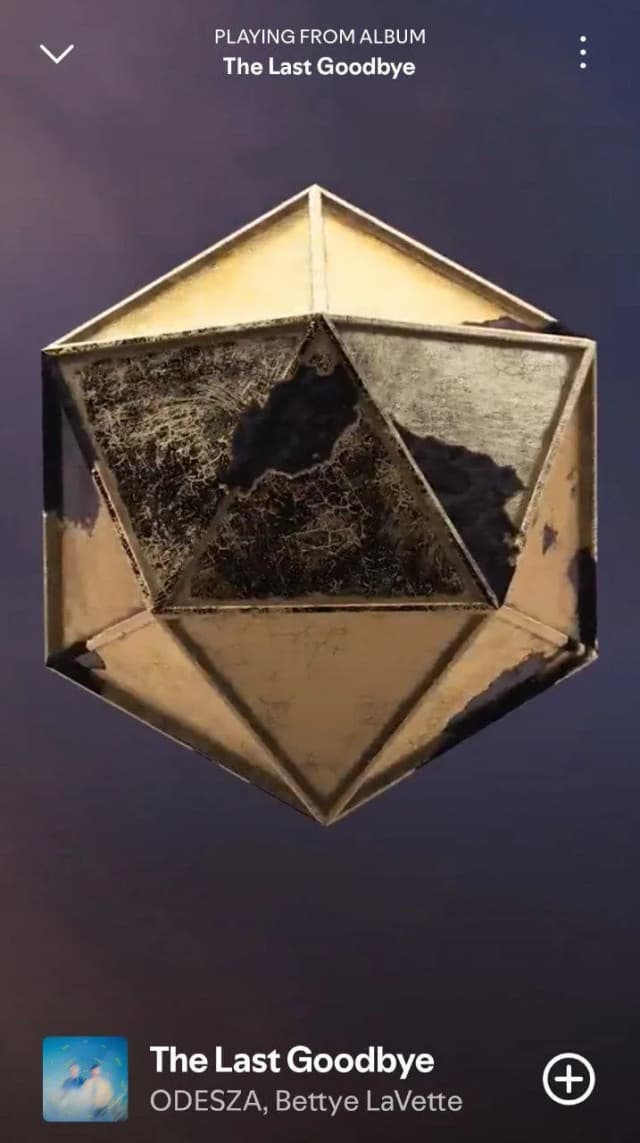
It loops so well you won’t even notice the start or end.
#3 - Don’t throw in too much text
Most people won’t read it anyway. Let the video show the feeling. No text. Just cool motion and energy.
As you have seen the ODESZA’s one, there’s no text in his loop.
#4 - Match the mood of the song
If the song is slow, keep the visuals slow and chill. If it’s fast, spice it up. Some platforms like Canva even offer beat sync feature for this.
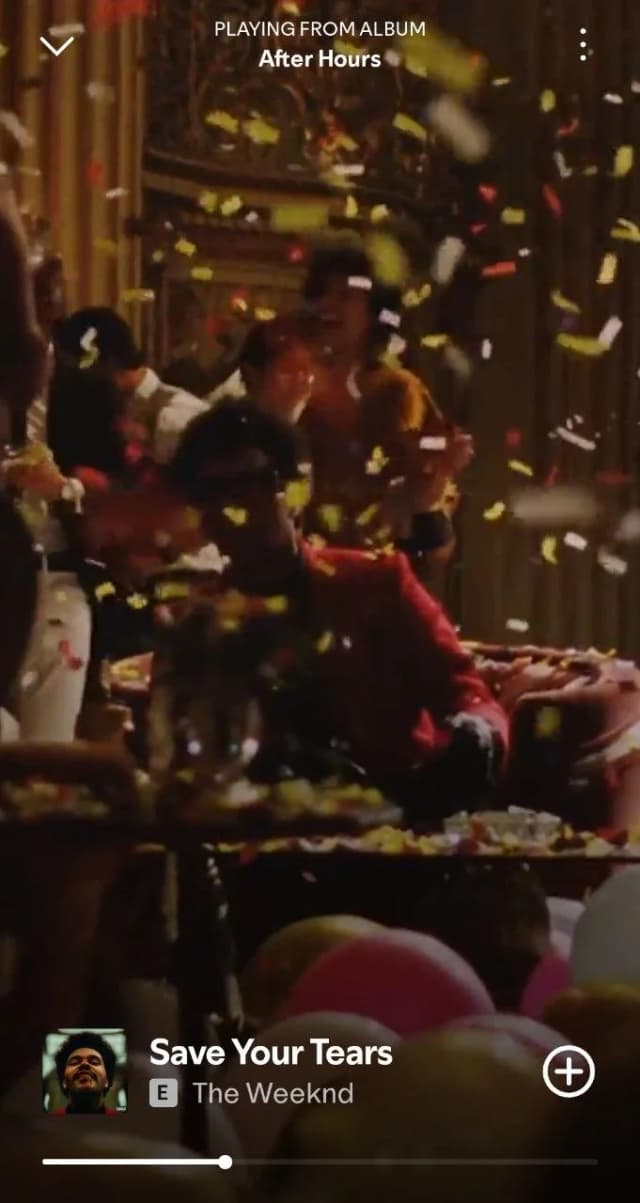
#5 - No ads or logos
Spotify wants the video to feel like art, not a commercial. So don’t add your website or merch links.
The Weeknd’s “Save Your Tears” Spotify Canvas is a very good example of this:
#6 - Format it right
- Use an MP4 video.
- Make it 720 x 1280 (that’s vertical)
- Under 8 MB
And remember, no sound. That’s it. Once you’ve got these right, your Canvas is ready to go.
Tools You Need for the Canvas Video
Alright, let’s talk about what you’ll actually use to make your Canvas.
These tools are simple, affordable, and perfect whether you’re editing on your phone or laptop.
I’ll describe each one below and you can check out what they look like right before you download them.
#1 - CapCut
If you’ve never edited a video before, start here. CapCut is super beginner-friendly and still powerful enough to make clean, smooth loops.
Here’s what it looks like:
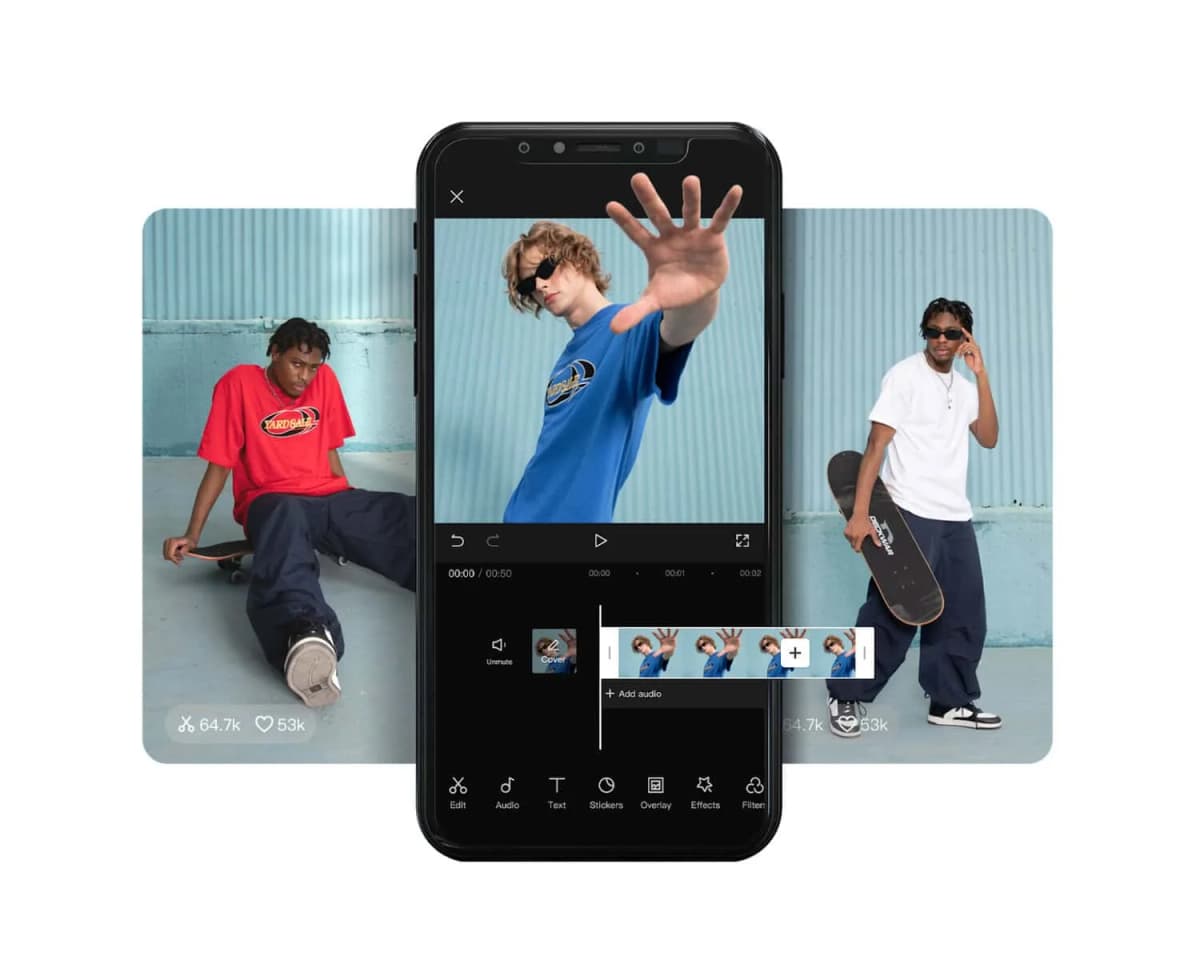
It lets you trim clips, adjust speed, add filters, and export in the right vertical format for Spotify.
The Best part? It’s free and works great on both iPhone and Android.
#2 - InShot
InShot gives you cool effects, transitions, and an easy timeline editor for quick edits.
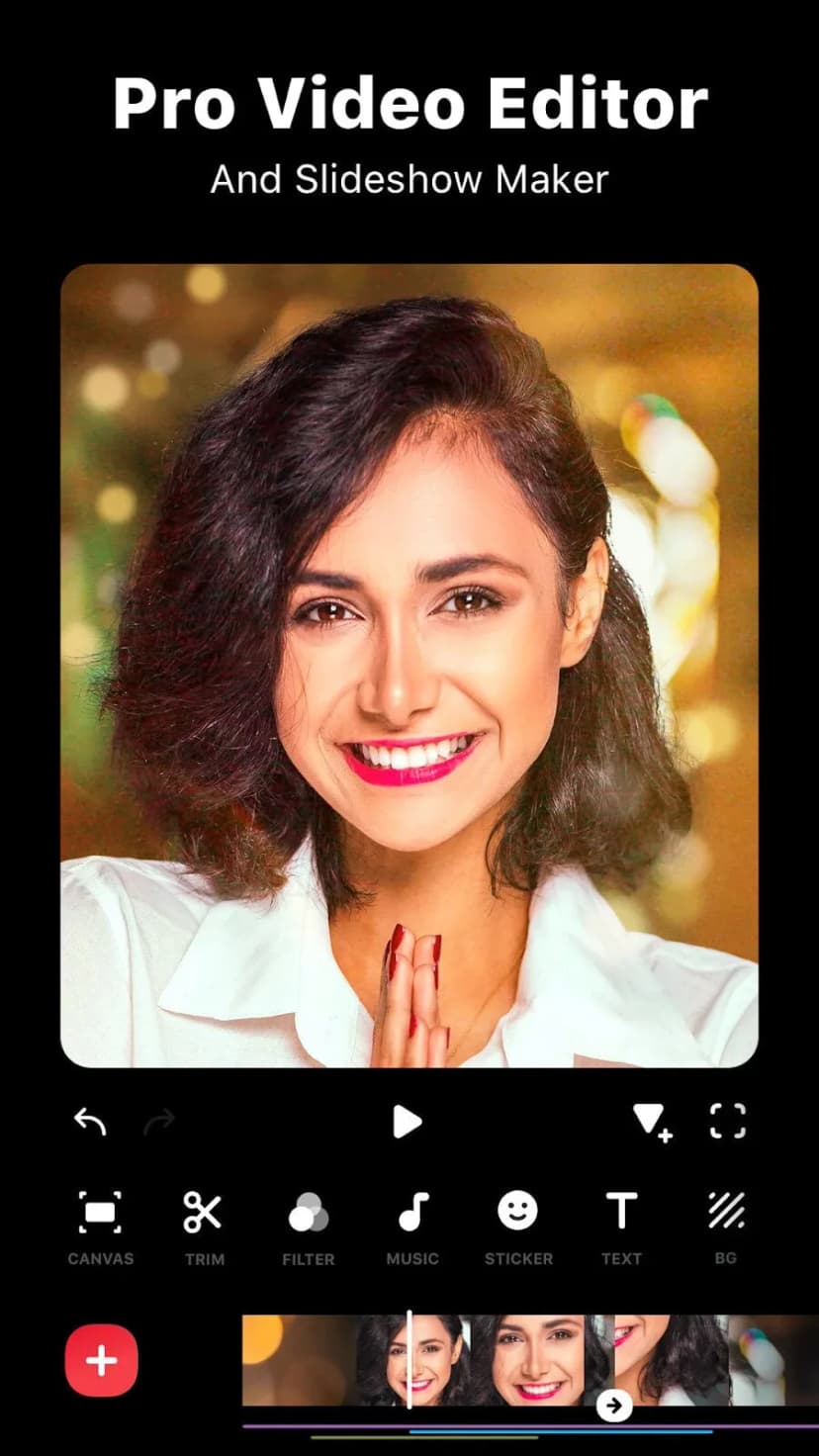
Just make sure you crop your video to 9:16 and keep it under 8 MB when exporting.
#3. Canva (Pro Account)
This one’s for artists who love design and want to create something super clean.
With a Canva Pro account, you can animate images, add movement, and build your loop from scratch using templates.
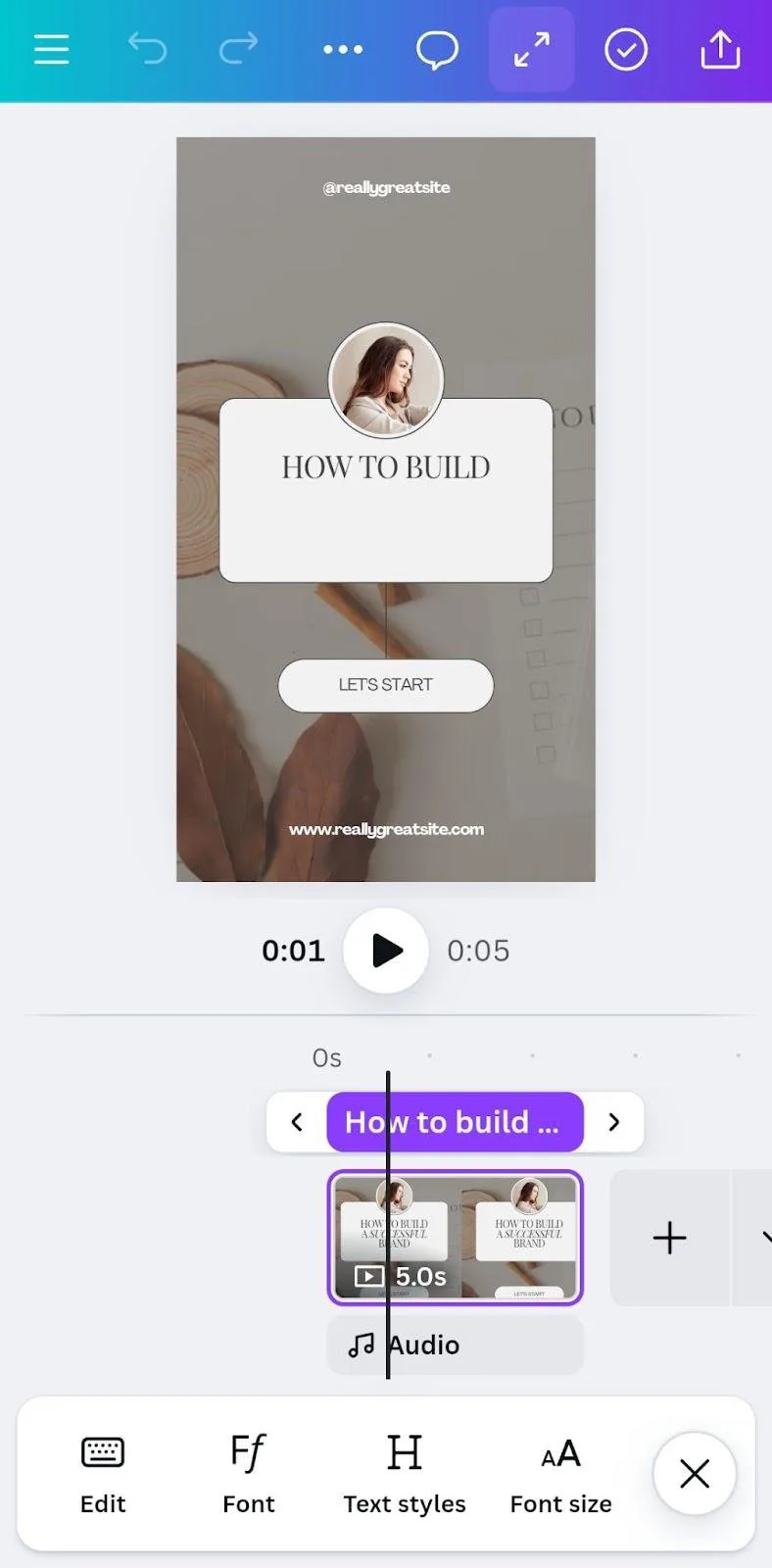
You don’t need any video editing background for this. Just drag, drop, and download.
Perfect for lyric-focused visuals or mood-setting animations.
#4 - Adobe Premiere Rush
Everyone knows Adobe.
I’d say it’s just the light version of Premiere Pro, but made for fast, mobile-friendly editing.
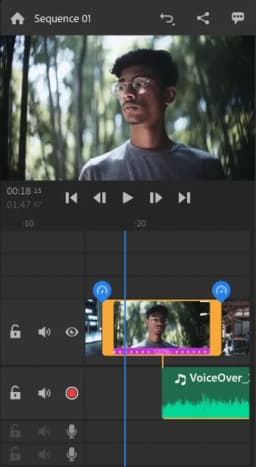
You can line up clips, smooth out loops, and export in Spotify’s format without needing a laptop.
Ideal if you already use Adobe tools or plan to get into deeper editing later.
#5 - VEED.io or Kapwing (Browser-based)
Don’t want to download anything? No problem. These tools run straight from your browser and work great for quick Canvas edits.
This is the site/app you’ll find in search:
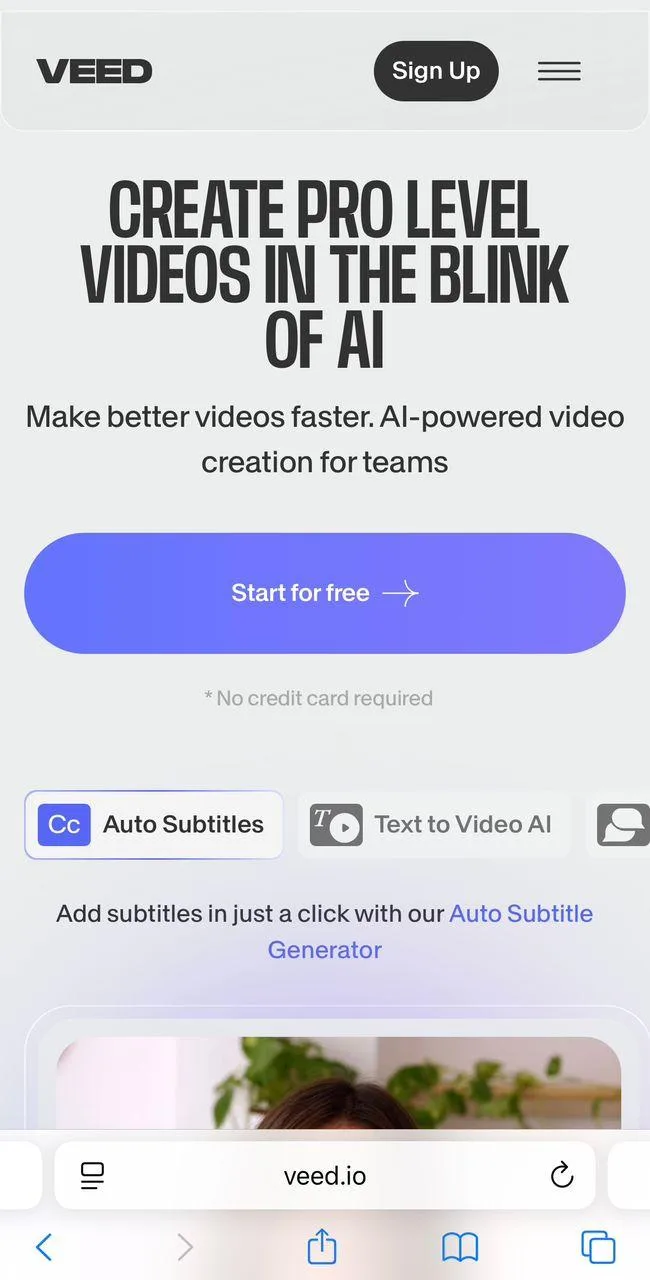
Just upload your video, crop it, trim it to 8 seconds, and export. They even let you add subtitles or animations if you want to try something new.
Bonus: Spotify for Artists App
This is where everything comes together. You can’t upload your Canvas through the normal Spotify app, you’ll need this one.
Make sure you download the right app:
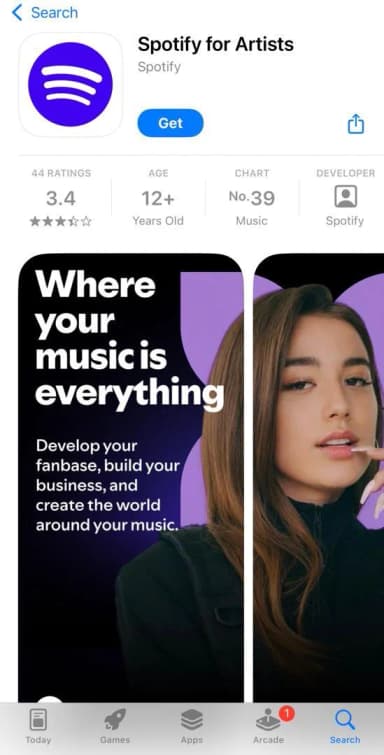
Once your Canvas is ready and your track is live, open this app, tap your song, and upload the video. Done.
Your Hands-On Experience: Step-by-Step Guide
Let’s make our first Canvas together.
You don’t need to know much, just follow along and you’ll have one ready in less than 15 minutes.
I’ll use CapCut for this walkthrough since it’s free, easy, and works on both Android and iOS.
First, you need a short video.
You can film something yourself with your phone.
Like you playing, walking, or even just something aesthetic like trees, lights, or fabric moving.
Or you can grab copyright-free video clips from sites like Pexels, Pixabay, or Mixkit.
Once you’ve got your clip, let’s jump in.
Step 1: Open CapCut and Start a New Project
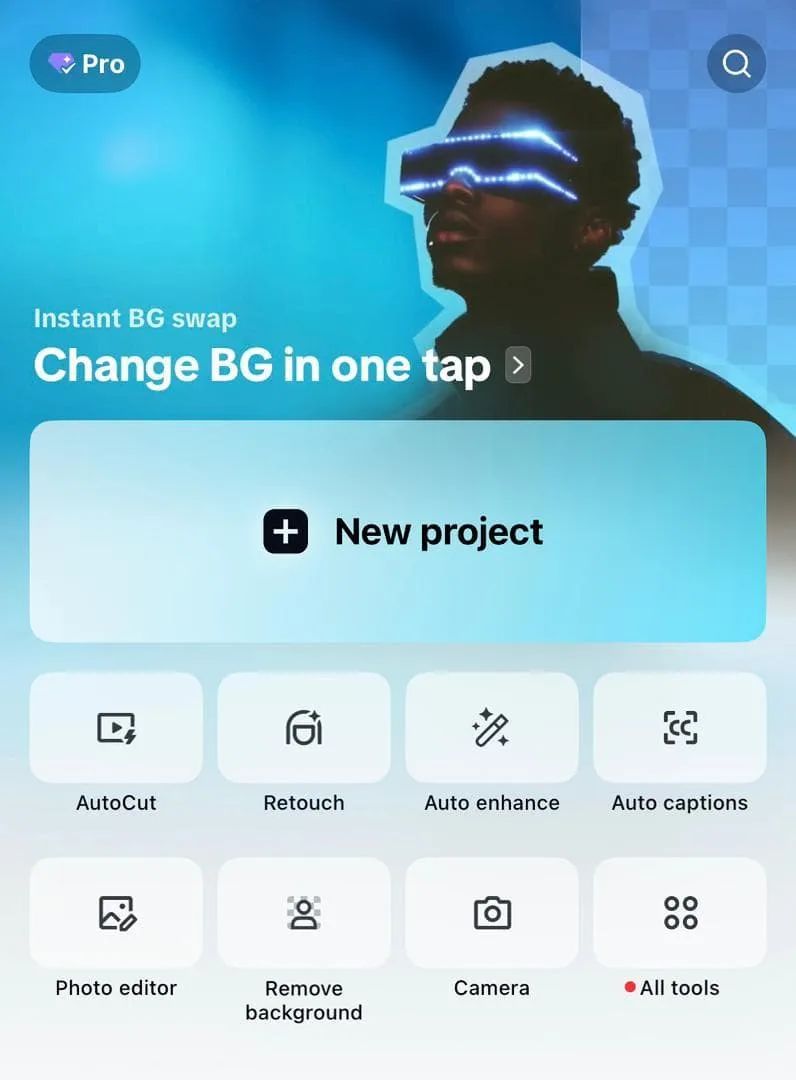
Select New Project, then choose the video or clip you want to use for your Canvas.
Make sure it matches your track’s vibe.
Chill track = chill visuals.
Step 2: Crop the Video to 9:16
Tap Format and choose the 9:16 ratio.
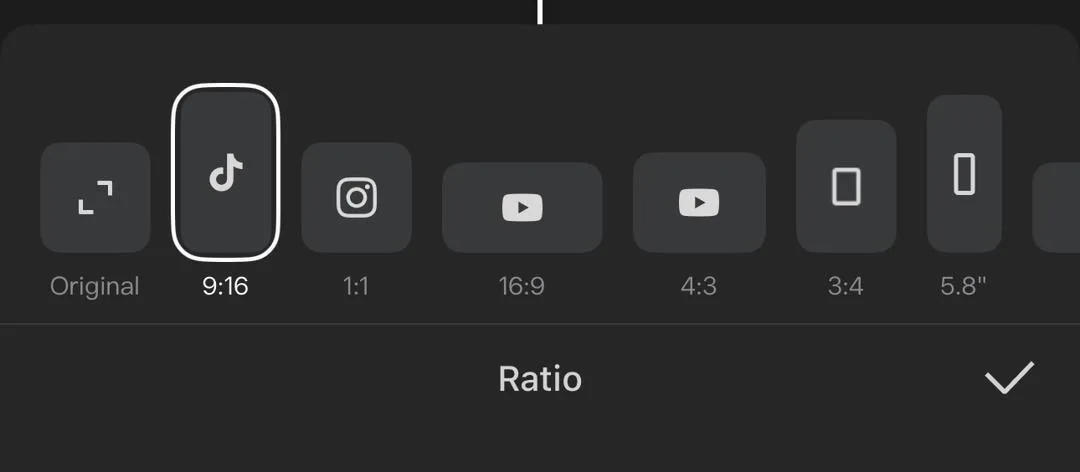
This makes it vertical and ready for Spotify. If you skip this, parts of your video might get cut off later.
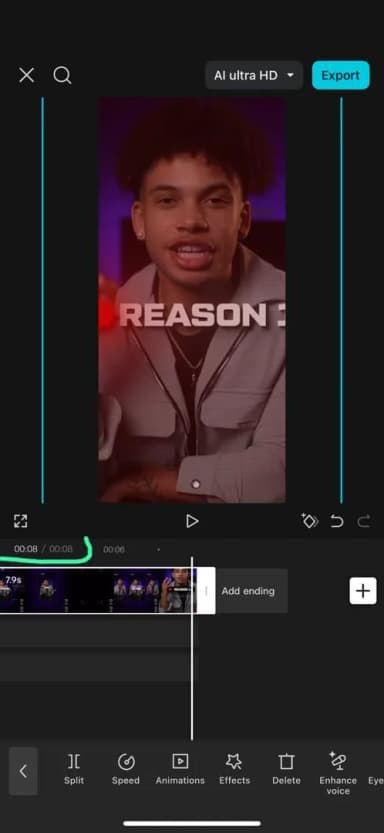
Step 3: Trim It Down to 8 Seconds
Drag the edges of the video clip to make it exactly 8 seconds or less. Spotify won’t accept anything longer.
If you want it to loop cleanly, choose a part of the video that has smooth movement and no sudden changes.
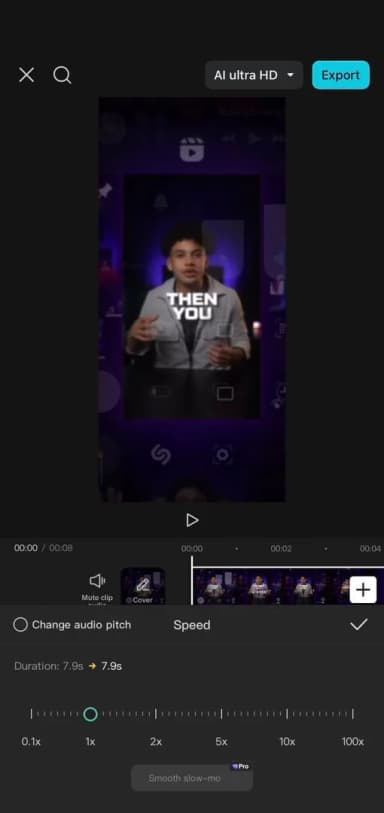
Step 4: Adjust the Motion (Optional)
Use Speed to slow it down or Filters to match the mood. If there’s too much going on, try reducing the speed a little.
You can also use Keyframes if you want to zoom or pan slowly across the screen.
Step 5: Export the Video
Tap Export, and choose 720p resolution.
Make sure the file size stays under 8MB.
If it’s bigger, reduce the quality just a bit or trim the clip shorter.
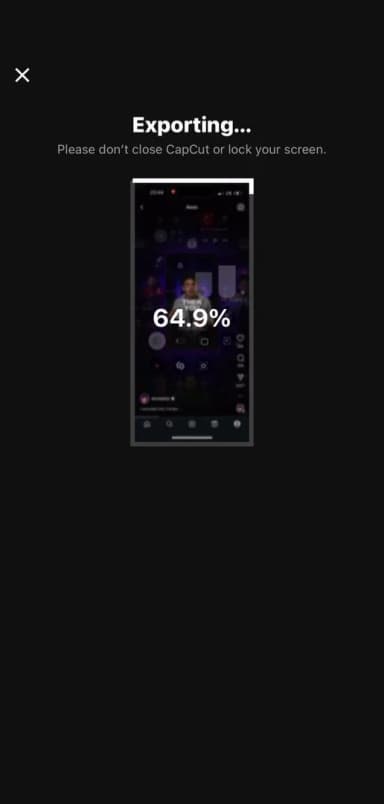
Once it’s saved, you’ve got your Canvas file ready.
Step 6: Upload on Spotify for Artists
Open the Spotify for Artists app.
Find your track, tap on it, and you’ll see an option to Add Canvas.
Upload the video you just made, preview it, then hit Submit.
Spotify usually approves it pretty fast, sometimes within minutes.
And that’s it. You just made your first Spotify Canvas.
Some Other Video Styles You Should Explore
Now that you know how to make a Canvas, let’s talk style. These aren’t tutorials, just ideas you can try to make your visuals stand out without overcomplicating things.
Each one below comes with a real Spotify Canvas example you can watch right now.
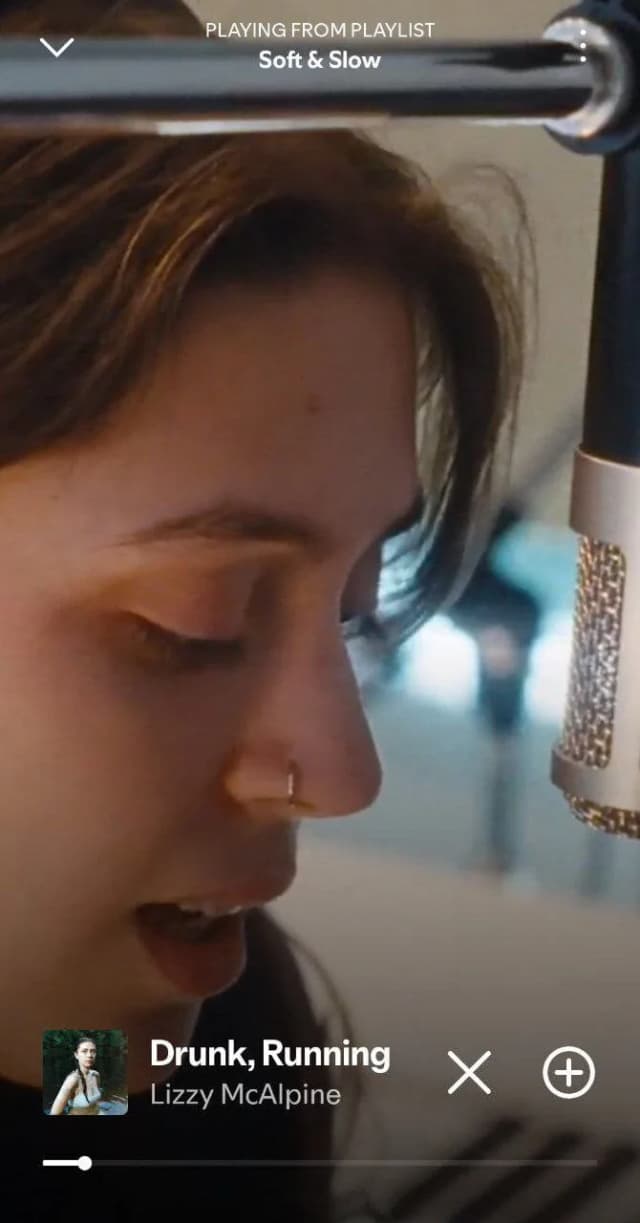
#1 - Slow Motion Loops
Great for emotional or chill songs. Just record something simple and slow it down. And trust me, it could be imperfect. That works.
Drunk, Running by Lizzy McAlpine definitely explains what I’m saying.
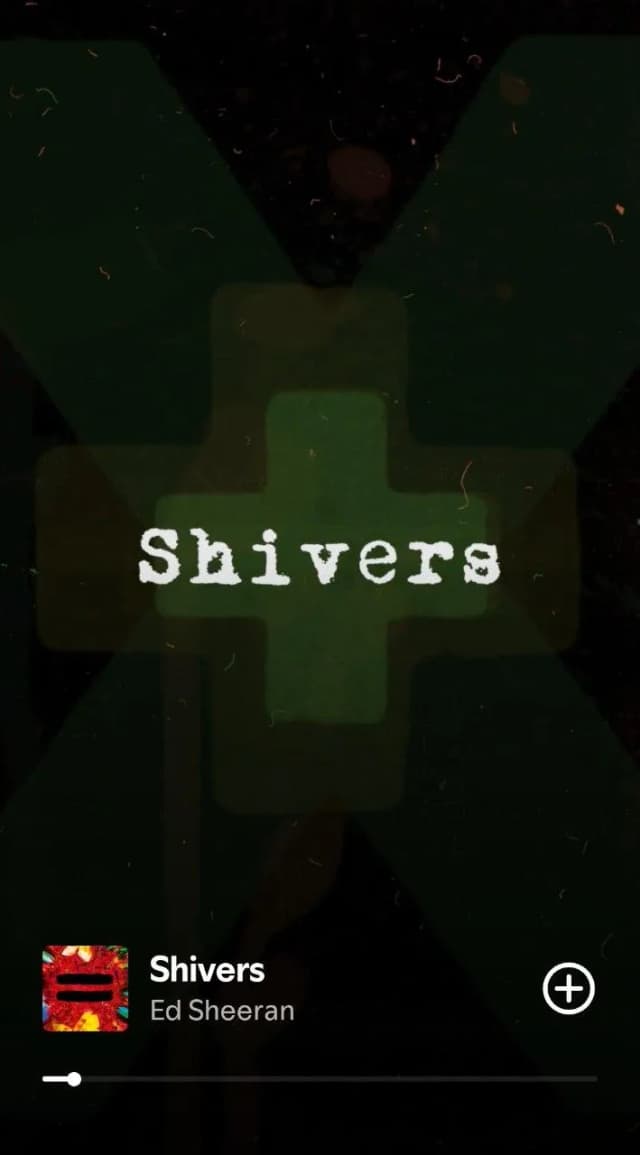
#2 - Lyric Glimpse
Just show the title of the track. That’s enough. But, make sure you wrap it around cool graphics.
Ed Sheeran is a master when it comes to such things. Just look at his Shiver’s canvas video.
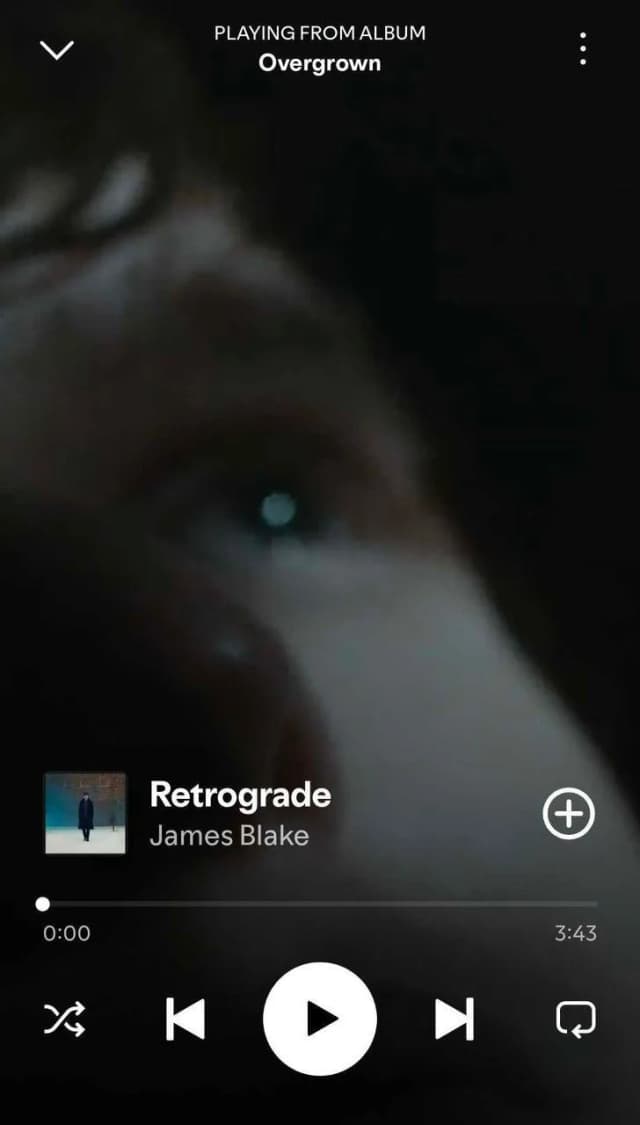
#3 - Abstract Shapes or Textures
If you want something moody and artistic, use visuals like lights, smoke, or colors moving abstractly.
A perfect example of a Spotify Canvas using abstract shapes, moving colors, lights, and moody artistic textures is James Blake’s “Retrograde.”
The Canvas for this song features swirling, slow-motion lights and ethereal colors that create a dreamy, introspective feel.
#4 - Design Some Moving Graphics with Canva
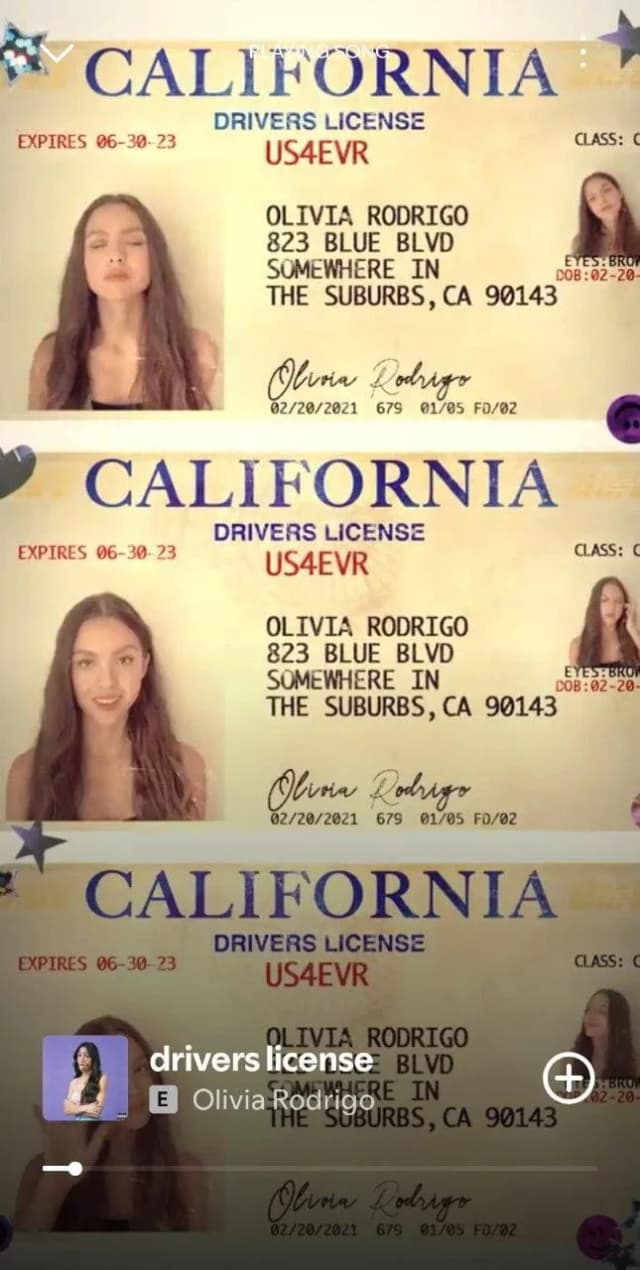
In my entire music career, I’ve never seen someone better than Olivia Rodrigo in Canvas style videos.
Her Driver’s License shows us a lot. Like literally, we can simply do some cool editing with Canva and make it move in a loop. That’s really cool.
#5 - Looping Performance Snippet
Record a video of yourself with 5-6 short mini clips in different places. After that, put it together like Steeve Rx’s Thoughts.
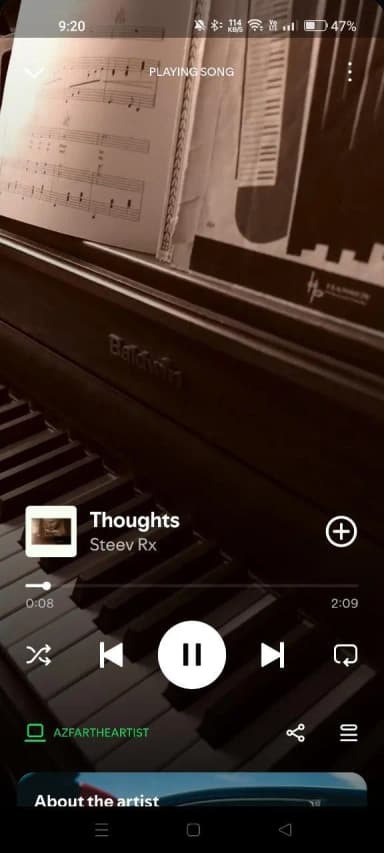
This track loops over and again in different places. Once you play it, you’ll know what I’m talking about.
#6 - Clone Style Canvas Video
Now here we again have one more from Olivia Rodrigo. Just look at the way she’s put herself making shadow clones like Naruto.
Those clones appear and then disappear in a loop.
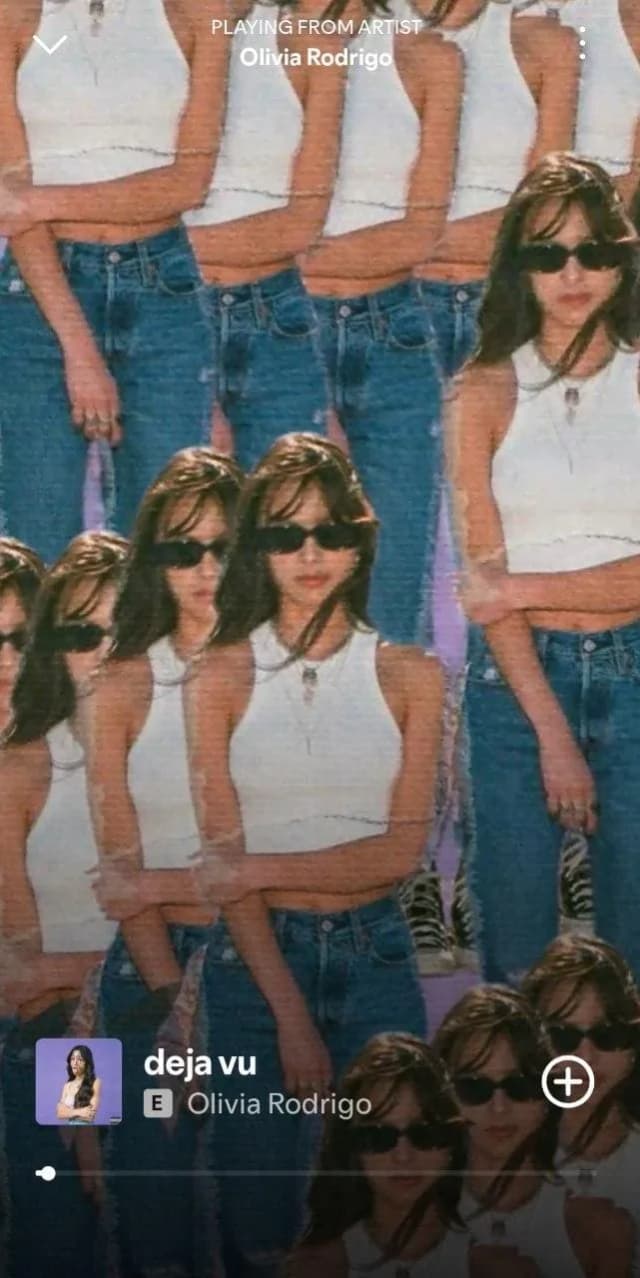
See? That’s why I told you she’s the queen of the Spotify Canvas game.
Final Thoughts
Spotify Canvas is not just a fancy feature. It is your chance to bring your music to life visually.
You don't need a big budget or a full team. Just your phone, some creativity, and the right tools.
Start simple, stay true to your style, and have fun with it. The more you try, the better you will get.
Now go make something that looks as good as it sounds.

Fundador e CEO da SoundCampaign
Sou o Nadav. Eu fazia música antes de construir tudo isso, e foi daí que veio meu interesse por marketing. A parte de análise de dados é a que mais gosto: de onde vêm os streams, o que se moveu e o que não se moveu. Fundei a SoundCampaign para dar aos artistas uma exposição de verdade. Deu muito mais trabalho e tempo do que eu imaginava, e isso não mudou muito até hoje.
Promova sua música
Posicionamentos reais em playlists, vídeos no TikTok e anúncios no Meta

A confiança de mais de 100.000 artistas e gravadoras
Nunca usamos bots.
Caso real
Como a SoundCampaign Colocou Grant Knoche na Frente de 460.587 Ouvintes com WOOHOO
Ler a história completa
Pronto para fazer sua música ser ouvida?
Junte-se a milhares de artistas independentes que usam a SoundCampaign para alcançar playlists, creators e fãs reais, com feedback honesto em cada etapa do caminho.
- Nunca usamos bots
- Programa de Proteção ao ArtistaSe um curador ou creator não avaliar sua faixa, devolvemos seu crédito. Seu orçamento está sempre protegido.
- Fique com 100% dos seus royaltiesSomos um serviço de promoção, não uma gravadora. Nunca ficamos com uma parte dos seus streams ou royalties.